User Guide
Engelsystem Client is an unofficial companion app for Engelsystem, the volunteer-management system used by events like the Chaos Communication Congress. It connects directly to your instance’s Engelsystem server with your own API key; there is no account with the app’s developer and no tracking (see the Privacy Policy). Questions? See the FAQ or Support.
Beta: the app is currently tested through Apple’s TestFlight. Join the beta on your iPhone or iPad (you need Apple’s free TestFlight app). Please report problems through TestFlight’s “Send Beta Feedback” or on Support.
What the app does (and does not)
- Shows your own shifts, the news, your profile (angel types, work logs), the instance’s locations, and — on servers that support it — your private messages.
- Reminds you before a shift starts with local notifications.
- Works with several instances at once, and has an Apple Watch app that shows your next shift.
- It is read-only for shifts: you cannot sign up for or change shifts in the app. That needs support in the Engelsystem server first.
iPhone, iPad and Mac
The app runs on iPhone and iPad (with a sidebar layout). On a Mac with Apple silicon the iPhone/iPad app can run as well: the beta can be installed with the TestFlight app on the Mac, and the App Store offers the app for these Macs too. This is not tested in depth yet, so some things may look or behave differently from the iPad app; please report problems on Support. The Apple Watch functions are not part of the Mac app.
Try it without an account: Demo Mode
On the first screen tap Try Demo Mode (it is the first block of the form). The app fills itself with sample data (shifts, news, a few messages) and makes no network requests. You can leave Demo Mode on, or switch it off and add a real server later in Settings.
Connect your Engelsystem server
- In a browser, sign in on your instance’s Engelsystem website and open
/settings/api(for examplehttps://engel.example.org/settings/api). Press Show API key and copy the key. The app currently uses Engelsystem’s REST API v0-beta. - In the app, on the first screen (or Settings → Add Instance), enter a Name (anything you like), the Server
address (for example
https://engel.example.org) and your API key. - Tap Test Connection. When it says the connection is verified, tap Save.
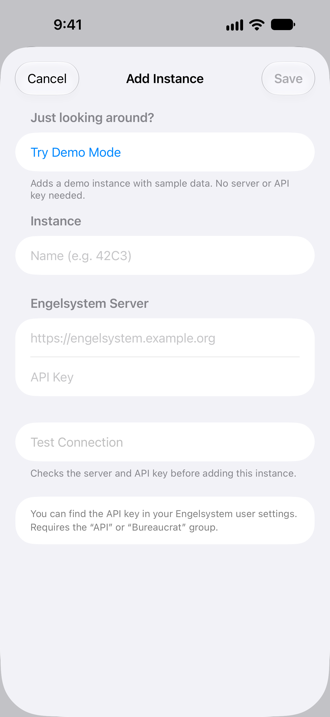
A server address that starts with demo:// (for example demo://engelsystem.local) is a demo instance: it needs no API key, the key field is greyed out.
The API key is stored in the iOS Keychain (synced through iCloud Keychain if you use it) and is only ever sent to the server you entered.
The main screen
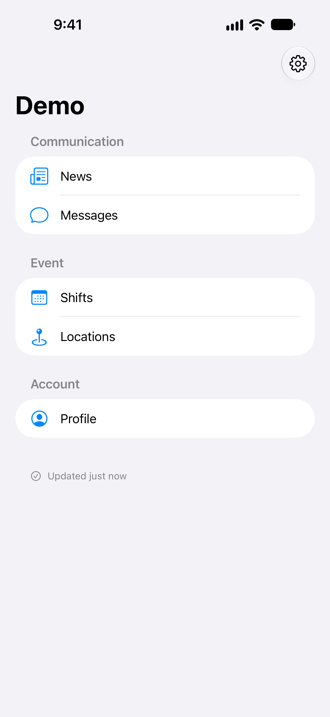
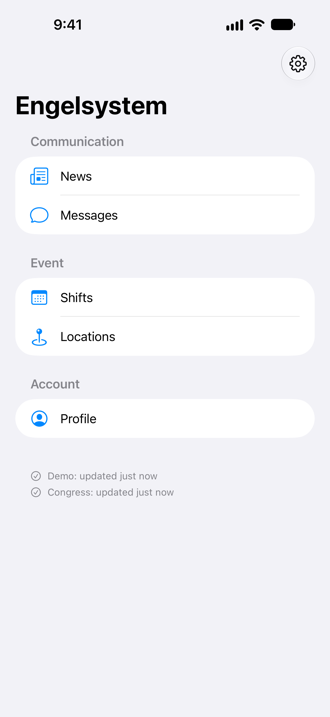
The main screen is a list of areas in three groups: Communication (News, Messages), Event (Shifts, Locations) and Account (Profile). Messages and Locations only appear if your server offers them. When the app starts, or an area is no longer available, you always land on this list. Pull down to refresh everything at once; the banner at the top shows what is syncing — with several active instances one line per instance, each with its steps (“2/5”). If an instance does not answer, its line turns orange; Stop sync ends the sync (after a confirmation) and Skip leaves out just that instance. The line at the bottom of the list shows how old each instance’s data is (tap it to refresh). The gear button opens Settings.
Shifts
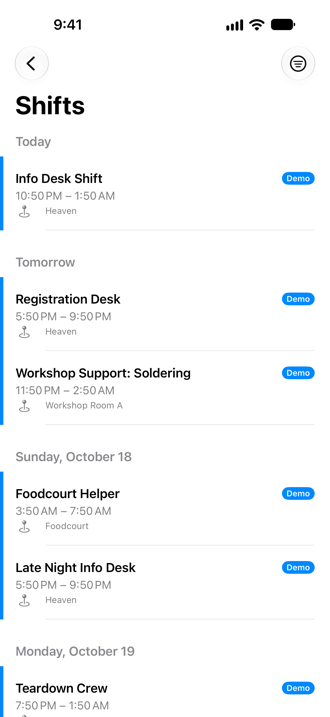
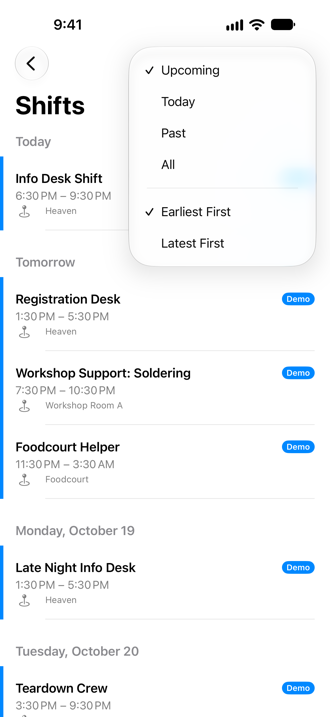
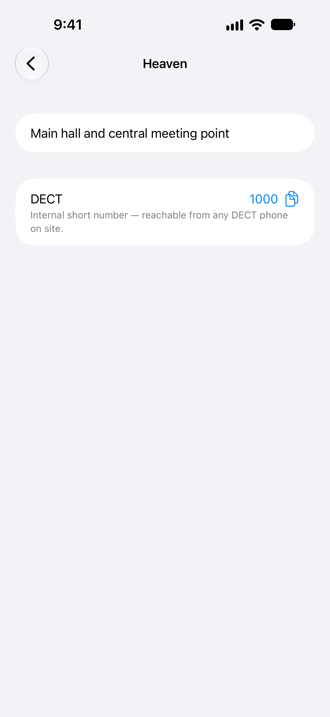
Your shifts, grouped by day (“Today”, “Tomorrow”, …). Each shift shows its time and location; tap the location to read its description. Pull down to refresh. A small badge shows which instance a shift belongs to when you use several.
The menu at the top right chooses which shifts are listed — Upcoming (running and not yet started, the default), Today, Past or All — and the order (Earliest First or Latest First). The app remembers your choice on this device; the symbol is filled when it differs from the default.
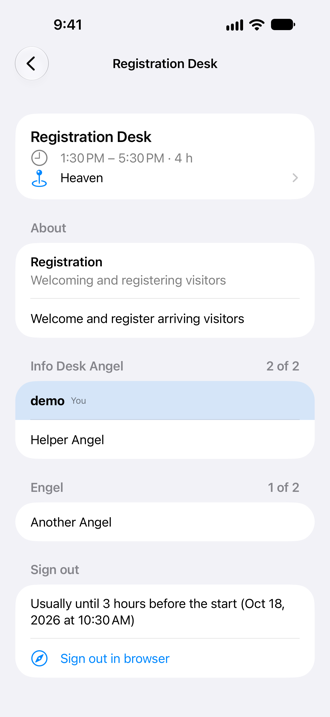
Tap a shift to open its details: the shift type with its description, the shift’s own description, the team by angel type (“2 of 3” people, your own entry highlighted, entries marked as “did not show up”), tags, a night-shift hint, a link to the talk page and — on your own shifts — until when you can sign out. Sign out in browser opens the shift on the Engelsystem website; the app itself never signs you out. What is shown depends on the server: a page only shows what the server tells (see the table below and the Features list of the instance). Pull down on the page to refresh just this shift.
News
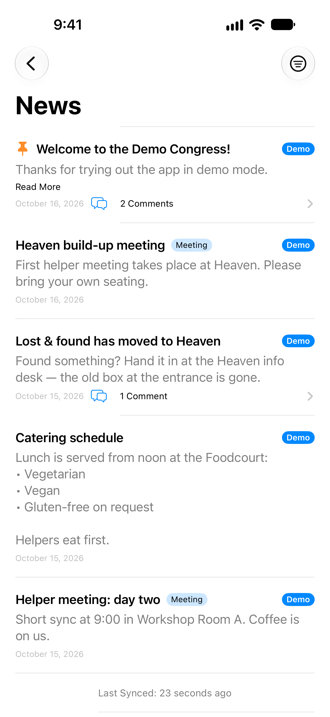
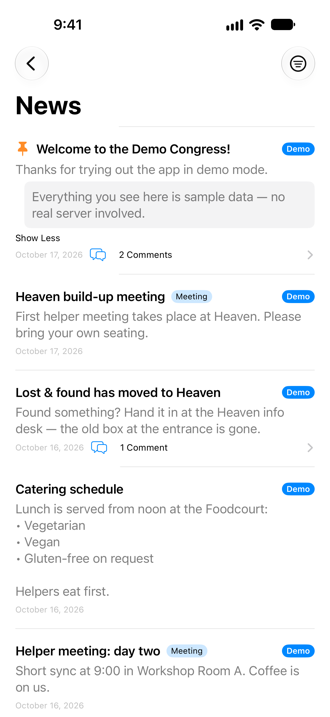
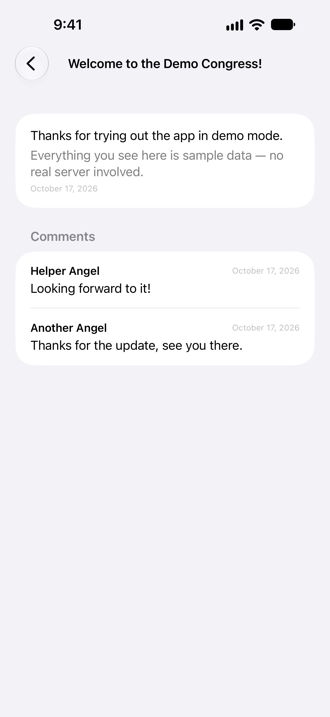
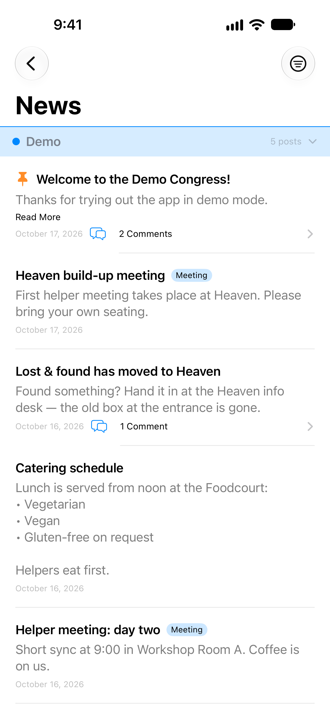
Announcements from the instance. Pinned posts come first. Tap Read More to expand long posts and the comments link to read the discussion.
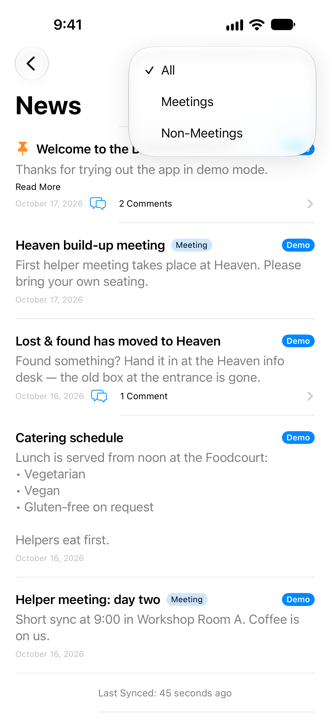
The filter button at the top right (three lines in a circle; the circle is filled while a filter is on) opens a menu with All, Meetings and Non-Meetings: show only the announcements that are meetings, only the others, or everything. The filter is not remembered — after the next start of the app the list shows All again. With several instances the filter applies to all of them.
Profile
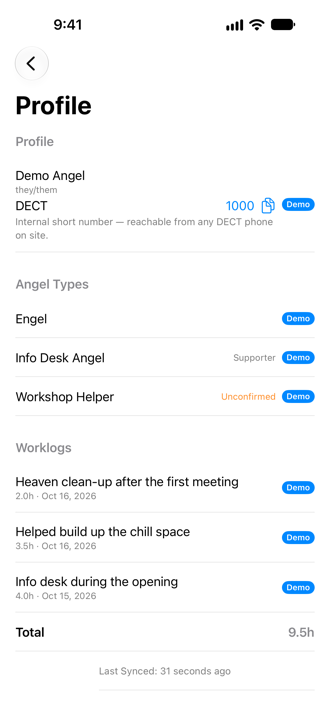
Your name with your DECT and mobile numbers (tap to call, copy with the copy button), your angel types (with a note if you are a supporter or still unconfirmed) and your work logs with the total hours. The work logs are the entries added by hand; hours from your shifts are not part of that list.
Locations
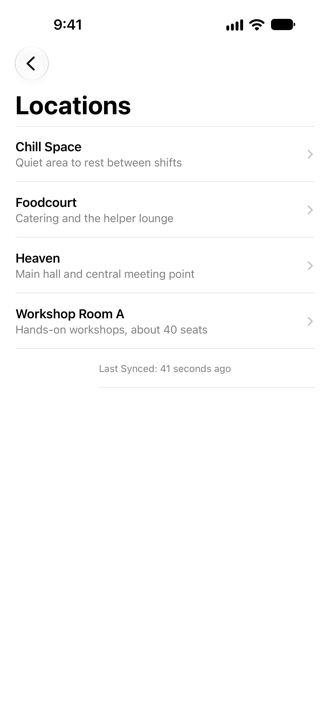
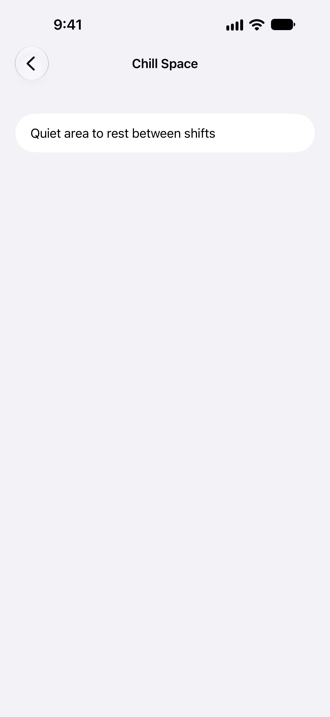
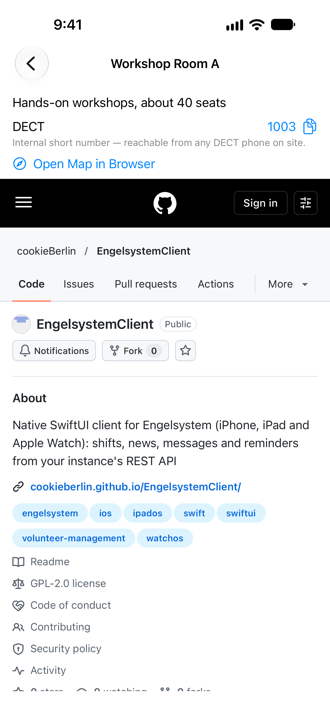
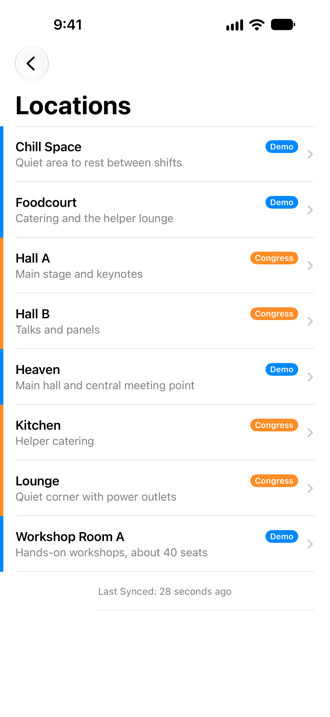
All rooms and places of the instance with their descriptions. Tap one for details such as a DECT number and a link to the map. The map page is shown right inside the location screen (almost full screen, loaded fresh each time) with an Open Map in Browser button. The map page’s cookies (for example your consent) stay on your device; the app deletes them every 30 days by default (or keeps them only until you quit the app, if you choose that); in Settings › Privacy you can change that, delete them yourself or switch to a plain link.
Messages
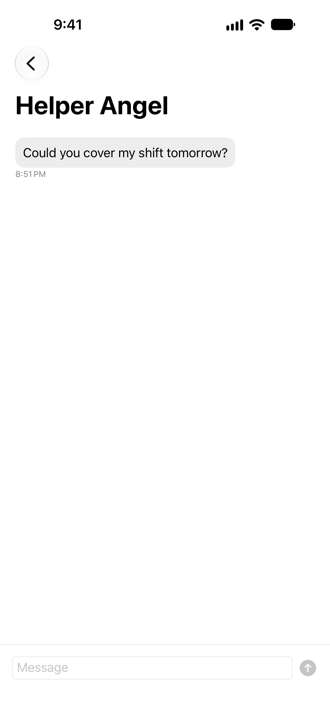
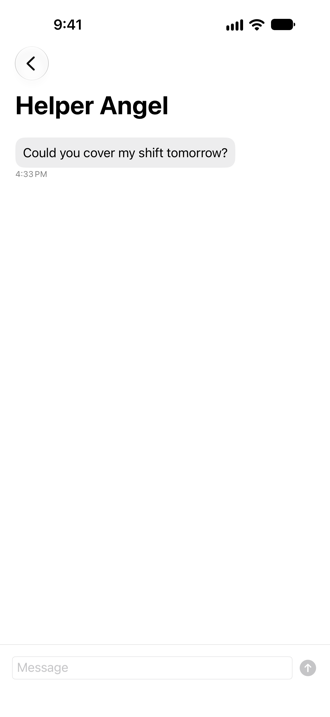
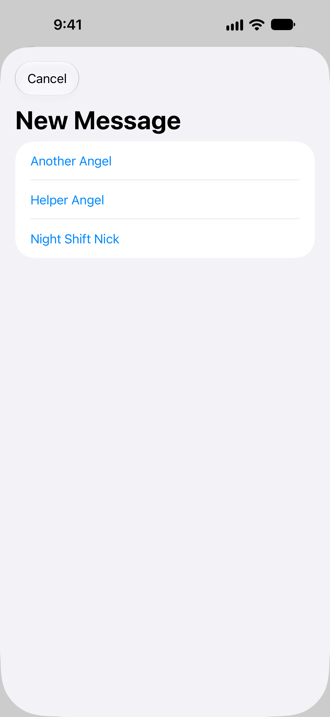
Private messages with other helpers. Tap the compose button to start a conversation, tap a conversation to read and reply. The Messages area only appears if at least one of your active servers supports it; if you do not see it, your server is simply not offering it yet (it needs the open Engelsystem change #1720; see Server compatibility). You can delete your own messages; opening a conversation marks incoming messages as read.
Settings
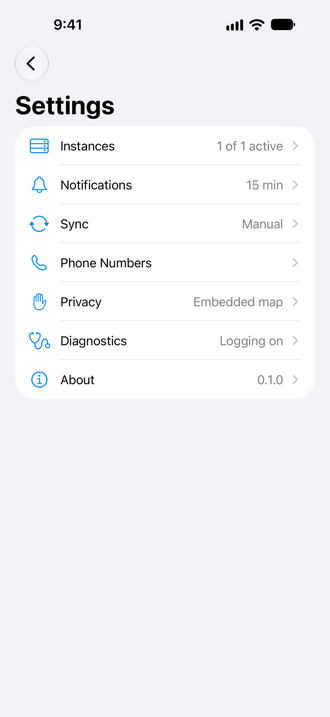
Settings is a short list of pages; each row shows a summary of its current state. The gear button on the main screen opens it.
Instances
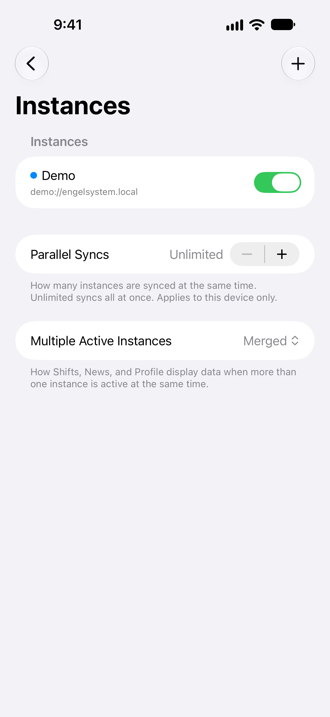
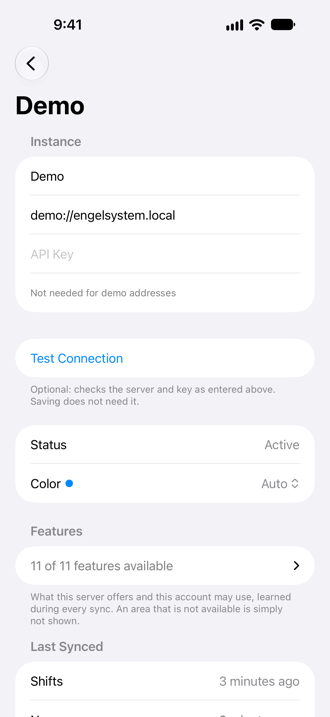
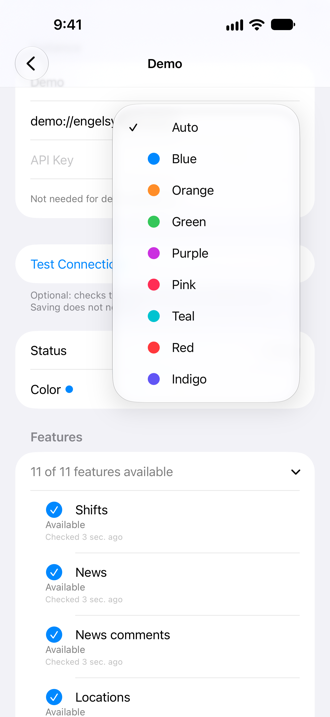
All your instances. Use the switch to turn an instance on or off (switching one on refreshes its data right away); tap one to open its page. There you change its name, server or API key right on the page — Save and Discard (which asks first) appear as soon as something changed, and saving does not need a successful connection test (Test Connection is optional). The page also shows the connection status, the Features list (see below), the times of the last syncs and the color of the instance. Remove Instance deletes it together with the data cached for it.
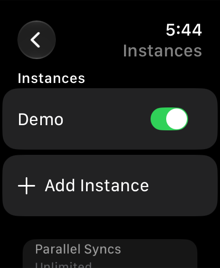
Parallel Syncs sets how many instances are refreshed at the same time (Unlimited by default, “1 at a time” syncs one after the other); the setting belongs to this device, and the Watch has its own.
Several instances: display mode, colors and instance tags
Multiple Active Instances chooses how Shifts, News, Locations, Messages and Profile show more than one active instance:
- Merged: one list; every entry carries an instance tag.
- Switcher: one instance at a time, chosen with a control at the top.
- Sectioned: one section per instance, each under a colored band with the instance’s name that you can tap to fold the section away.
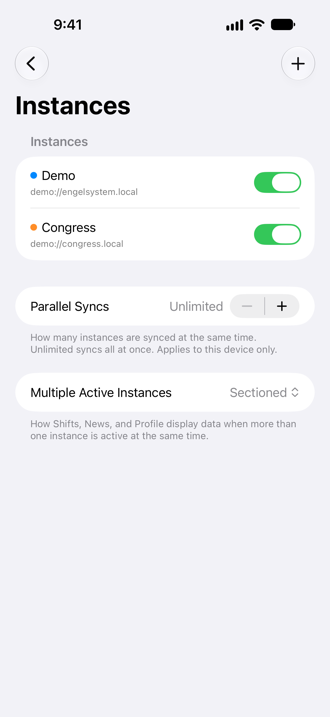
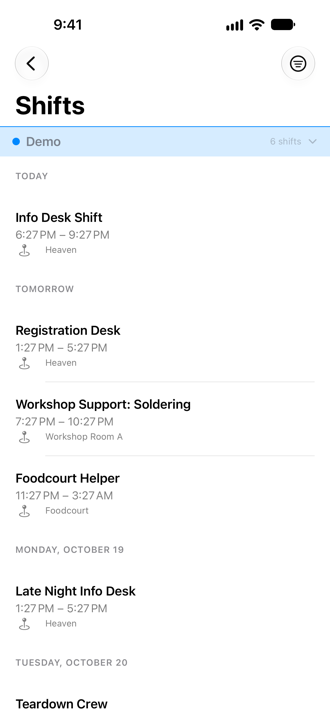
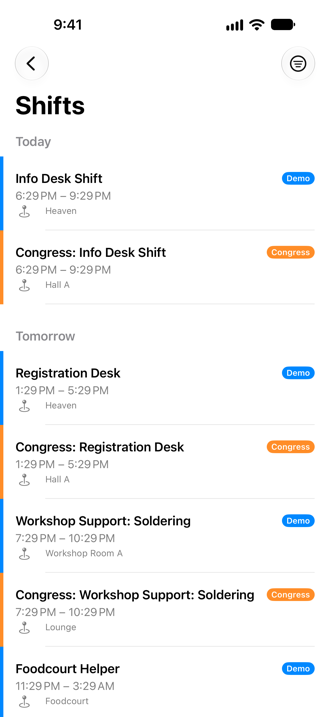
Every instance has its own color. It is the color of the section band and of the instance tag: the small rounded label with the instance’s name that sits at the entries of a merged list (a shift, a news post, a location, a conversation) so you can see at a glance which instance an entry belongs to. The same color shows as a dot at the instance in Settings. Pick it on the instance’s page under Color (the menu lists the colors with a swatch); Auto spreads the colors evenly over your instances, and a color you picked is kept on all your devices.
Notifications
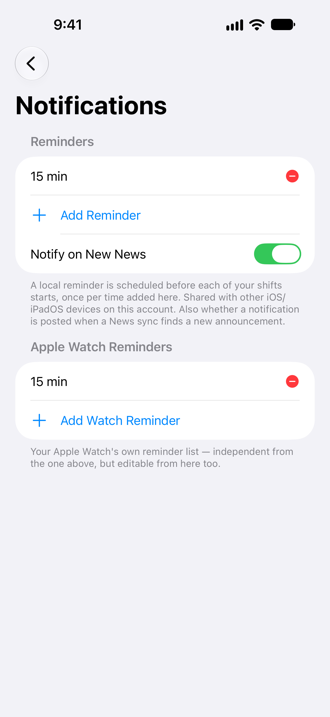
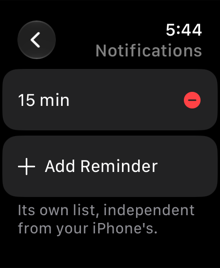
The reminder times before each shift (“15 min”, …). Add Reminder adds more, the red button removes one. Notify on New News posts a notification when a background sync finds new announcements. Apple Watch Reminders is the same for your Watch, independently of the iPhone list.
Sync
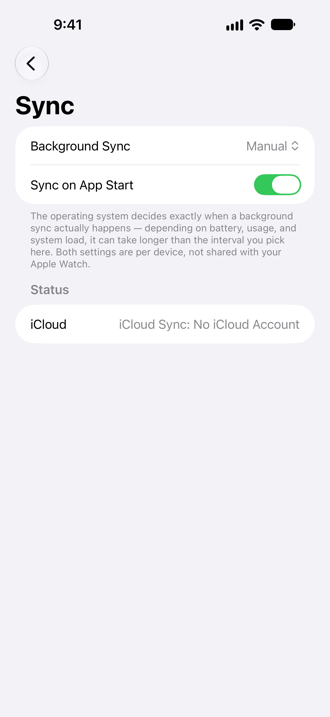
Background Sync sets how often the app may refresh in the background (iOS decides the exact moment, so it can take longer than the interval); Sync on App Start refreshes when you open the app. The page also shows the iCloud status and the last background sync.
Phone Numbers
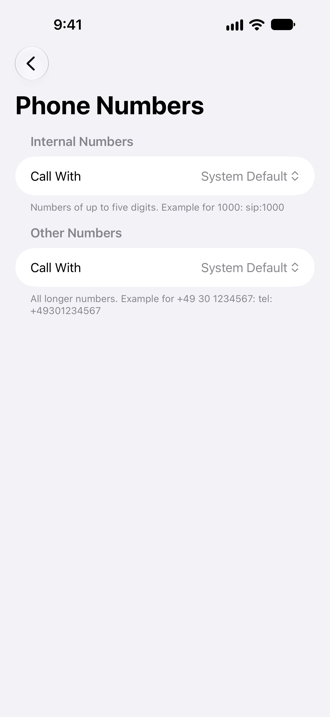
Which app opens internal and other numbers (see “Phone numbers” above): the system default, Acrobits Softphone, Groundwire,
Cloud Softphone, Microsoft Teams, a custom link or copy only. On a Mac the system default is whatever app handles tel: links there
(often Teams); choose another entry to change that.
Privacy
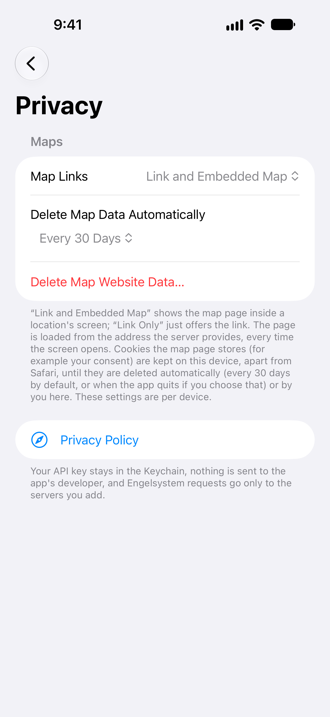
Map Links (a plain link or the map inside the location screen), automatic deletion of the map page’s data and Delete Map Website Data, plus a link to the privacy policy.
Diagnostics
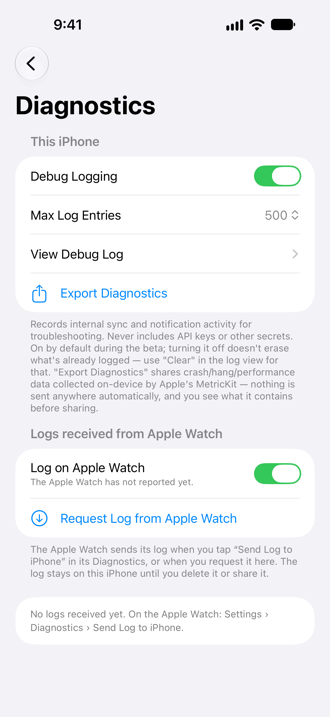
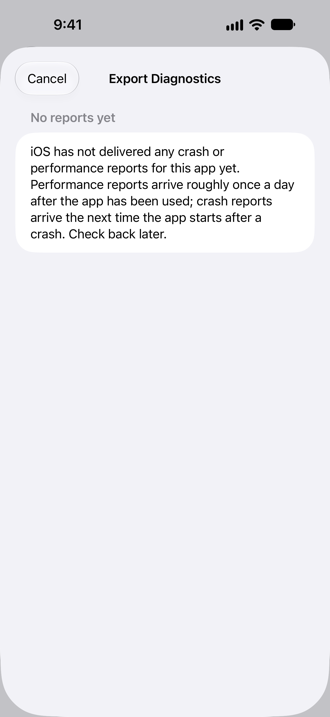
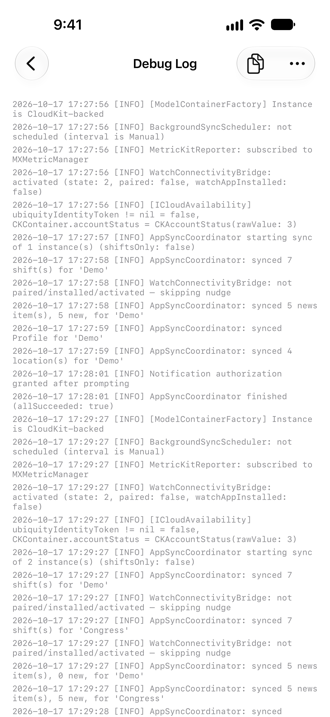
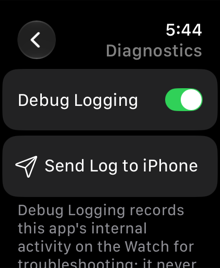
This iPhone — Debug Logging (on by default in the beta), View Debug Log and Export Diagnostics for bug reports (see the FAQ). Logs received from Apple Watch — the logs the Watch sent, to view, Share All, swipe to delete or Delete All; Request Log from Apple Watch asks the Watch to send its log, and Log on Apple Watch switches the Watch’s logging (it shows “Waiting for Apple Watch” until the Watch confirms). On the Watch: Settings → Diagnostics → Send Log to iPhone. Nothing is sent unless you tap or request it.
About
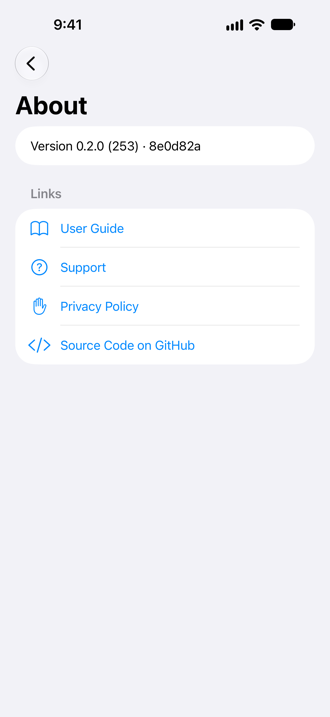
Version and build, and links to the guide, support, privacy policy and the source code.
Apple Watch
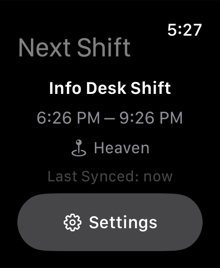
The Watch app shows only your next shift (name, time, location) and works on its own, without the iPhone nearby. Your instances are shared between iPhone and Watch through iCloud.
To add the complication: on the Watch, touch and hold the watch face, tap Edit, choose a complication slot and pick Next Shift (circular, rectangular and inline styles are available).
Watch settings
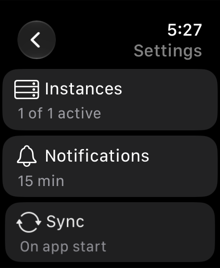
Its Settings are a list of pages like the iPhone’s.
-
Instances — switch instances on or off (tap the switch; tapping the name opens the instance), add one directly on the Watch, Parallel Syncs.
-
Notifications — the Watch’s own reminder times.
-
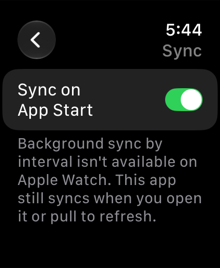
Sync — sync on app start; background sync by interval is not available on the Watch.
-
Diagnostics — its own debug logging switch and Send Log to iPhone.
-
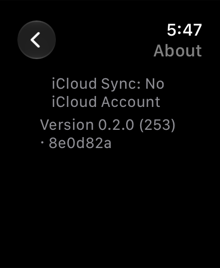
About — version and iCloud status.
What your instance offers: the Features list
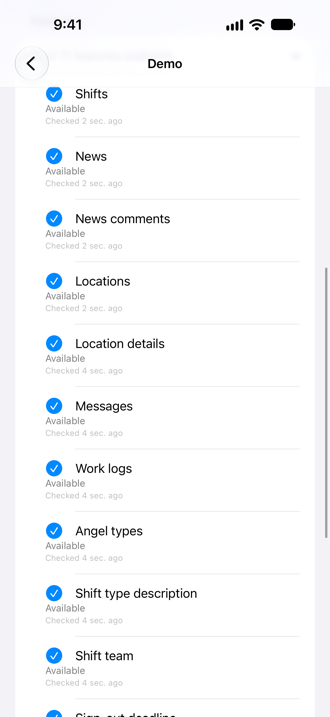
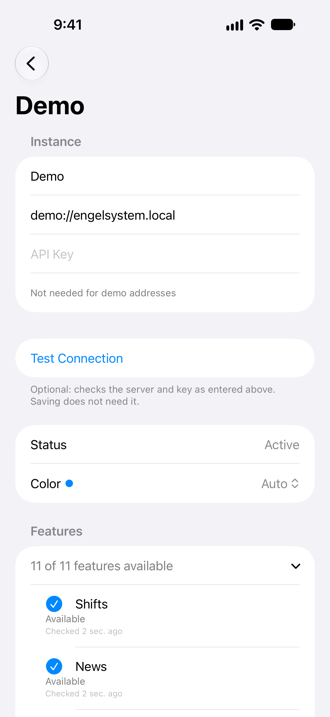
Not every Engelsystem server and not every account can use everything. The app finds out for each instance and keeps a Features list: Settings → Instances → the instance → Features. Every row is one function (Shifts, News, News comments, Locations, Location details, Messages, Work logs, Angel types, and the extra details of shifts) with one of three states:
- Available — the server offers it and your account may use it.
- Not allowed for your account — the server offers it but your account lacks a privilege; the row names the privilege when the
server tells (for example
locations.view). Ask the people who run your instance, or see Server compatibility. - Not offered by the server — the server does not have the function (yet).
Each row also says when it was checked. The list is learned from the server’s answers during every sync and by Test Connection; it
belongs to this device and is not synced. While everything works the list is folded to one line (“11 of 11 features available”; tap it
to open it); as soon as something is missing it opens by itself, problems first. Areas that are not available are hidden quietly:
no error, no empty screens. Demo Mode offers everything, except the demo:// address that only has News on purpose. See also the
FAQ.
Server compatibility
The app uses Engelsystem’s REST API v0-beta and works with the Engelsystem of today. Several improvements it can show are still open pull requests at engelsystem/engelsystem (status 2026-10-15). Until they are merged and your instance runs a server version that includes them, the app keeps working and simply hides what is missing:
| Pull request | Status | Without it |
|---|---|---|
#1709 — access concept: read with the api privilege or the matching web privilege |
open | Every request needs an account in a group with the server’s api privilege (for example “API” or “Bureaucrat”); otherwise no data loads and the Features list of the instance shows what is not allowed. With it, the account’s own privileges are known and Test Connection shows a summary. |
| #1710 — news comments | open | No comments and no comment counts in News. |
| #1711 — single location and location details | open | Locations may be missing entirely (when only the API group may read them) and a single location cannot be refreshed. |
| #1720 — private messages API | open | No Messages area at all: it only appears on servers that offer the messages API. With it, reading works with the api or the user_messages privilege, sending needs user_messages. |
#1721 — shift types readable with user_shifts |
open, planned feature | Shift type descriptions (planned for the shift detail page) are only available to accounts with the api privilege. |
| #1722 — shift lists and shift details | open | The shift detail page has no shift type description, tags, talk link, night shift hint or “sign out until” time from the server (it then says “usually until 3 hours before the start”). |
| #1723 — shift entry details | open | The shift detail page has no “did not show up” flag and cannot tell whether you can still sign out (the button follows the usual 3 hours). |
#1724 — GET /shifts/{id} |
open | A single shift cannot be refreshed on its own; the detail page shows the cached shift. |
| #1725 — angel types readable like on the website | open, planned feature | No additional angel type details. |
| #1726 — users and profile details | open, planned feature | No goodie score or vouchers in your profile. |
“Planned feature” means the app does not use these changes yet; the row says what they will make possible.
Which privileges does my account need? With the new access concept an account without the api privilege can read what
the website shows it: news for News, locations.view for Locations, user_shifts for shift types and shifts,
angeltypes.view for angel types and user_messages for Messages. The default group “Angel” has them. Until the
change is on your server, the account needs the api privilege (a group such as “API” or “Bureaucrat”).
Already merged and nothing to worry about: #1708 (work logs for “my own account”) and #1712 (API tests).
Good to know
- Reminders are scheduled from the last sync, so open the app (or pull to refresh) after a schedule change.
- The app only talks to the server you entered. There is no analytics and no advertising.
- iPad is supported with a sidebar layout.
- The app is open source (GPL-2.0): github.com/cookieBerlin/EngelsystemClient.